Picture-in-picture editor
Make a picture-in-picture video.
Layer a camera clip, screen recording, or second video above the main footage and control its size, position, and timing.
Build a picture-in-picture layout
Starts a 16:9 project ready for two local video imports.
Requires a current desktop browser. No account is required.
Put a second video inside the frame
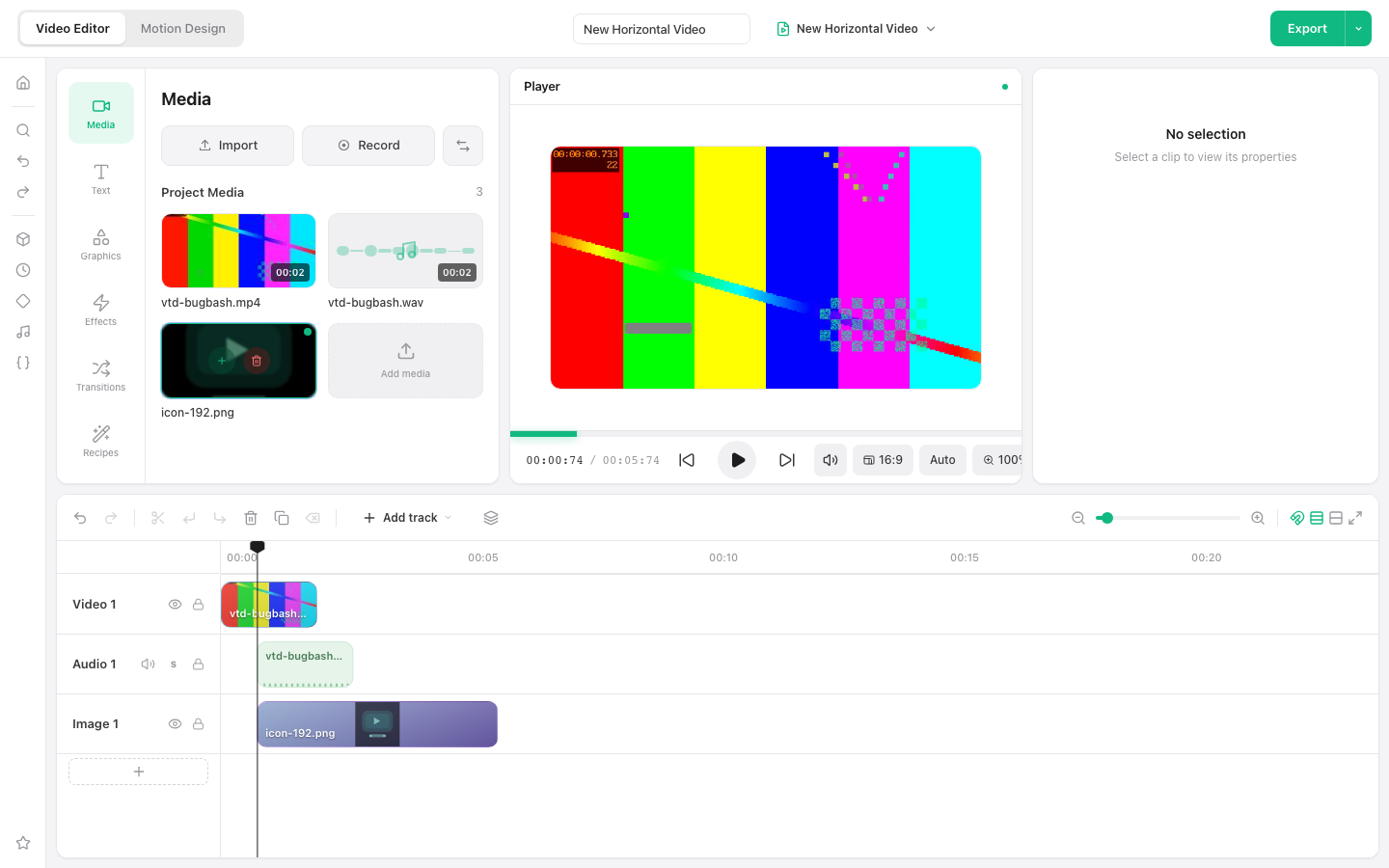
Picture-in-picture uses track order to place one clip above another. Select the upper clip and scale it down, then position it where it does not cover important content.
How to make a picture-in-picture video
Import both videos
Add the main footage and the inset camera or screen clip from your device.
Create two video layers
Place the main clip on a lower track and the inset clip on a track above it.
Resize and position
Select the upper clip, reduce its scale, and move it to the desired corner or region.
Align and export
Trim and sync both clips, preview the layout, then export the finished video.
Ways to use this workflow
Reaction video
Place a camera response above the source footage.
Tutorial
Keep a presenter visible while a screen recording fills the frame.
Comparison
Show a second angle or reference clip alongside the main subject.
Browser limit: Two simultaneous videos require more decoding performance than a single track. Smaller source resolutions can improve browser playback on less powerful computers.
Frequently asked questions
How do I put one video on top of another?
Place the main clip on a lower video track and the inset clip on a track above it.
Can I resize the inset video?
Yes. Select the upper clip and use the inspector or canvas handles to change its scale and position.
Can the inset appear only during one section?
Yes. Move and trim the upper clip independently on the timeline.
Are both source videos uploaded?
No. Imported source media remains on your device in the local-only editor build.