Image overlay editor
Add an image or logo to video.
Layer photos, logos, and graphics above video, then adjust their position, scale, opacity, and duration.
Add an image in the video editor
Starts a 16:9 project ready for local media import.
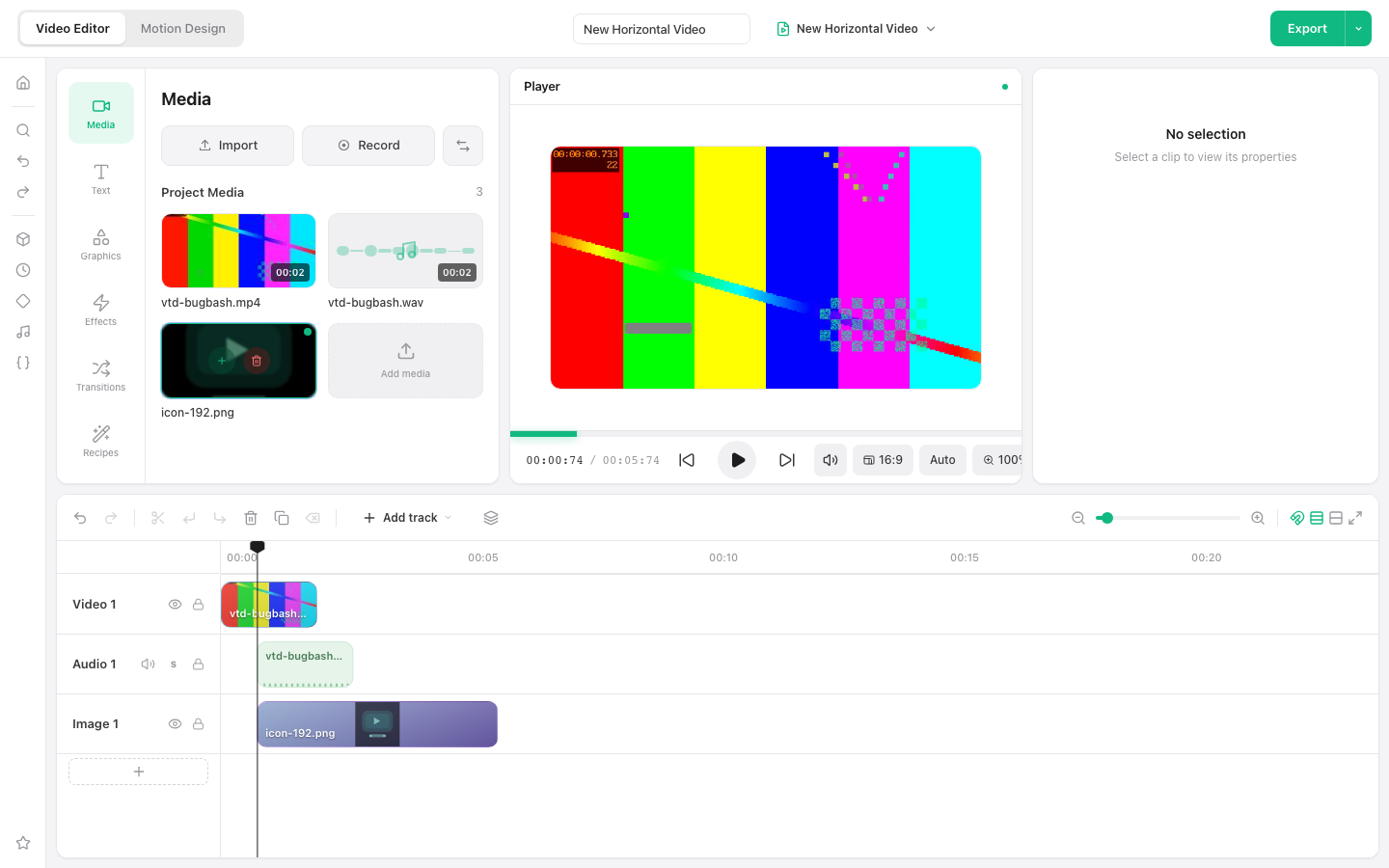
Requires a current desktop browser. No account is required.
Place graphics above your footage
An image clip behaves like a visual layer. Put it on a track above the video, select it in the player or timeline, and use the inspector to control how it fits the frame.
How to add an image or logo to video
Add the background video
Import your video and place it on the main video track.
Import the image
Import a JPG, PNG, or other supported image from your device.
Position the overlay
Add the image above the video, then adjust its scale, position, opacity, and timing.
Export the composition
Preview the overlay, export the project, and download the resulting video.
Ways to use this workflow
Logo overlay
Keep a brand mark in one corner for part or all of a video.
Product image
Show a product photo while narration or footage continues underneath.
Graphic callout
Add an arrow, badge, or transparent PNG at a precise moment.
Browser limit: This workflow is for desktop browsers. Use a sufficiently large source image to avoid visible blur after scaling.
Frequently asked questions
Can I add a transparent PNG to video?
Yes. Import the PNG and add it as an image layer above the video track.
Can I use an image as a logo overlay?
Yes. Resize and position it in the inspector, then extend its timeline clip for the required duration.
Can the image appear for only a few seconds?
Yes. Trim and move the image clip on the timeline to set its start and end time.
Are imported images uploaded?
No. Imported media stays on the device in the local-only editor build.