Text overlay editor
Add text to video online.
Place editable titles, captions, and labels on a multitrack timeline, then control exactly when each text layer appears.
Add text in the video editor
Starts a 16:9 project with the Text panel open.
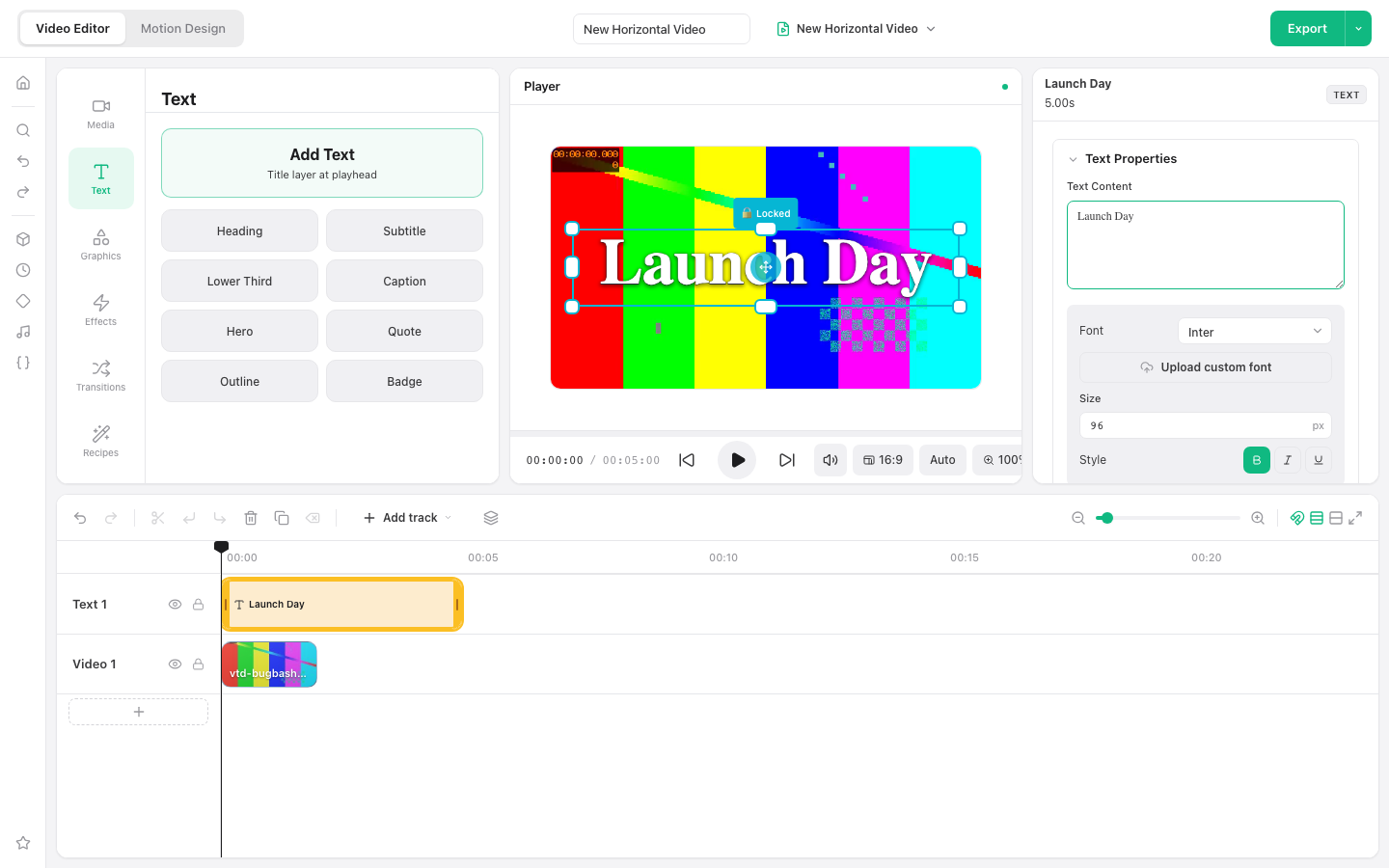
Requires a current desktop browser. No account is required.
Text that stays editable
Use a text track when the words need independent timing and styling. Select a text clip to edit its content in the inspector while the player shows the result.
How to add text to video online
Import your video
Open the editor and import a local video into the Media panel, then add it to the timeline.
Add a text preset
Open Text and choose Add Text, Heading, Subtitle, Caption, or another preset.
Edit and time the text
Select the text clip, change its content and style in the inspector, then trim or move it on the timeline.
Export the result
Preview the sequence, open Export, choose the output settings, and download the finished video.
Ways to use this workflow
Titles
Introduce a topic, chapter, speaker, or location.
Captions
Add short on-screen context without burning a full subtitle file.
Calls to action
Place a readable URL, handle, or next step at a specific moment.
Browser limit: The editor is designed for desktop and laptop browsers. Very large or long 4K projects can exceed available browser memory.
Frequently asked questions
Can I change the text after adding it?
Yes. Select the text clip in the timeline, then edit Text Content and styling in the right-side inspector.
Can text appear only for part of the video?
Yes. Move and trim the text clip on its own timeline track to control when it appears.
Can I upload a custom font?
Yes. The text inspector includes a custom font upload control for the current editing session.
Does the exported video have a watermark?
No. VideoToolDeck does not add a logo, outro, or watermark to the exported file.