Lower third maker
Create lower thirds for video.
Add a ready-made lower third, replace the text, style it for your video, and time it to the speaker or scene.
Create a lower third in the editor
Starts a 16:9 project with the Text presets open.
Requires a current desktop browser. No account is required.
Identify speakers without covering the frame
Lower thirds place concise information near the bottom of the picture. Keep the copy short, maintain contrast, and leave enough screen time for comfortable reading.
How to create lower thirds for video
Import the video
Add the interview, presentation, or scene to a new editor project.
Choose Lower Third
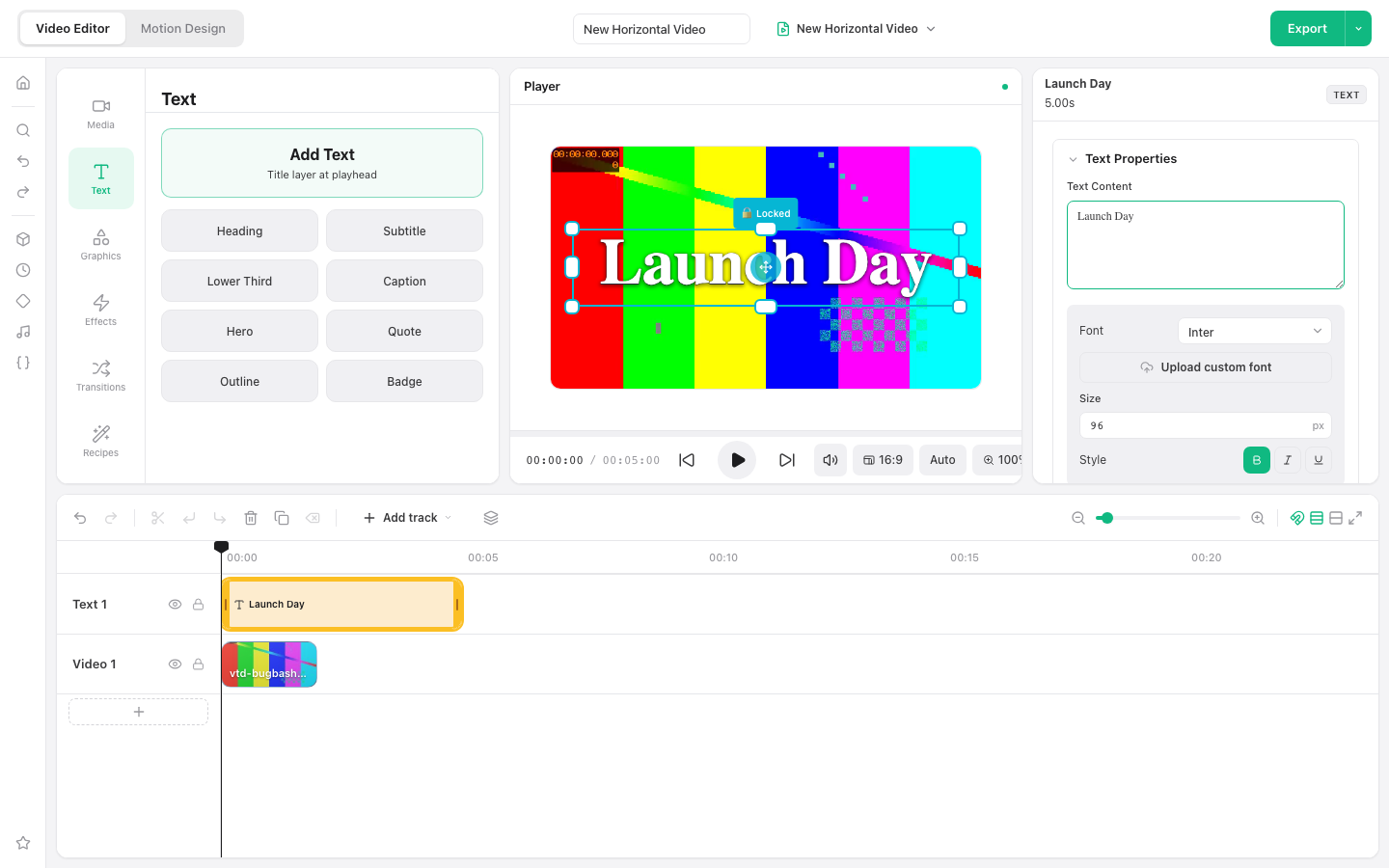
Open the Text panel and select the Lower Third preset.
Replace and style the copy
Select the text clip, enter the name and supporting detail, then adjust its visual style.
Set the timing
Move and trim the lower-third clip to match the speaker introduction, then export.
Ways to use this workflow
Speaker identification
Show a person's name and role during an interview.
Location caption
Identify where a scene was recorded without interrupting the footage.
Topic label
Mark a chapter, product, or key point in an explainer video.
Browser limit: Keep lower-third copy concise and test it against the brightest and darkest parts of the footage for readability.
Frequently asked questions
Is there a lower-third preset?
Yes. Open the Text panel and choose Lower Third from the available text presets.
Can I change the name and job title?
Yes. Select the created text clip and edit its content in the inspector.
Can I control when the lower third appears?
Yes. Move and trim its text clip on the timeline.
Will the lower third add a site watermark?
No. Only the layers you add to the project appear in the export.