Audio track editor
Add audio or music to video.
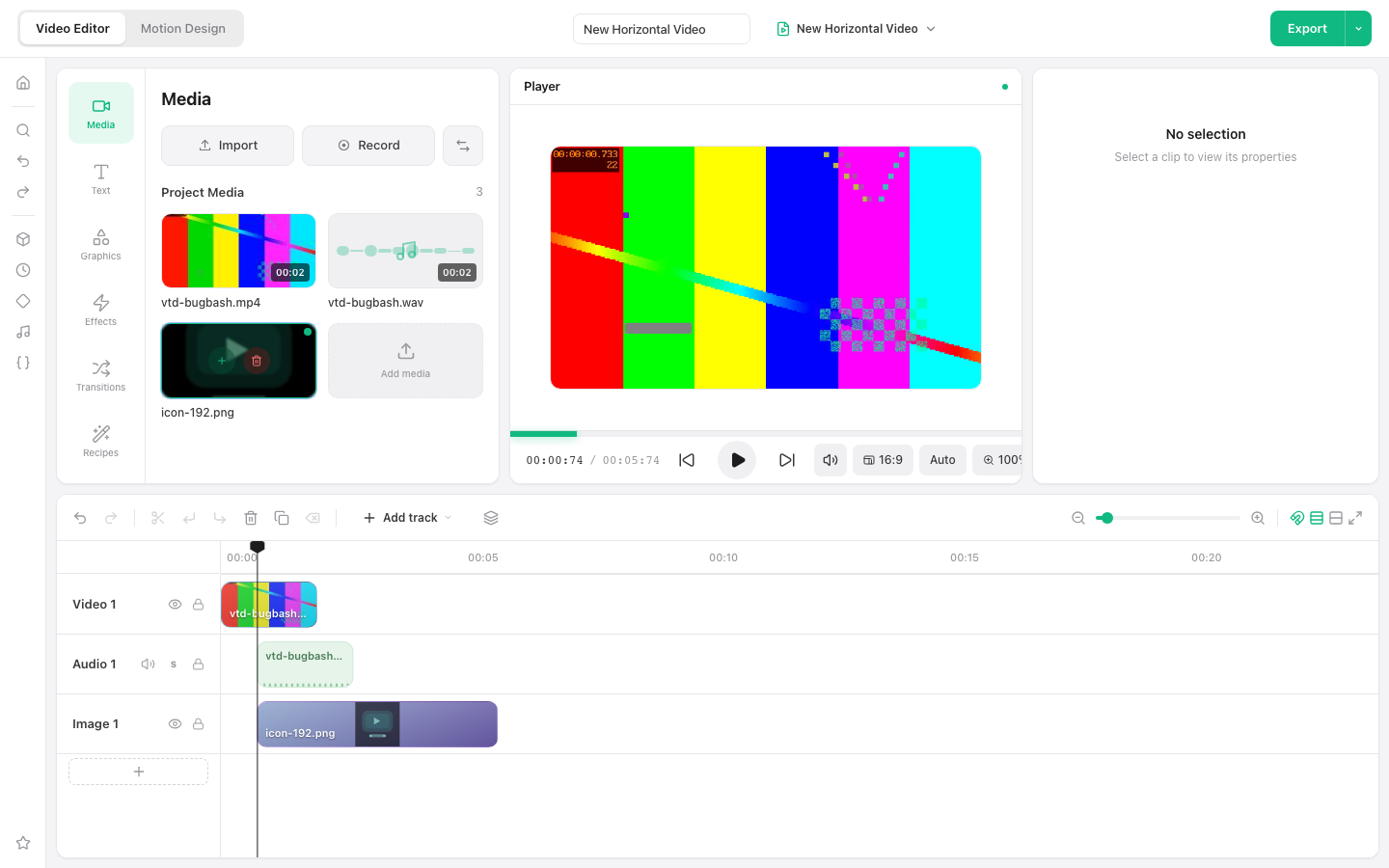
Combine a video with music, narration, or sound effects on separate timeline tracks without uploading your source files.
Add audio in the video editor
Starts a 16:9 project with the Media panel open.
Requires a current desktop browser. No account is required.
Match sound to the picture
Import an audio file into the same project as your video. Put it on an audio track, align it with the playhead, and trim the clip to the part you need.
How to add audio or music to video
Import the video
Open the editor, import your video, and place it on the timeline.
Import the audio
Use Import in the Media panel to add music, narration, or a sound effect from your device.
Arrange the tracks
Add the audio to the timeline, move it into sync, and trim its start or end.
Preview and export
Play the project to check timing, then export and download the finished video.
Ways to use this workflow
Background music
Add a music bed beneath a product clip, reel, or presentation.
Voice-over
Pair recorded narration with a screen recording or visual sequence.
Sound effects
Place short audio cues at exact moments on the timeline.
Browser limit: Use audio you have permission to publish. Browser performance depends on project length, media formats, and available memory.
Frequently asked questions
Can I add music to an MP4?
Yes. Import the MP4 and an audio file, then place both on separate timeline tracks.
Are my audio and video uploaded?
No. Imported source media remains on your device in the local-only editor build.
Can I trim the added audio?
Yes. Select the audio clip and adjust its position and duration on the timeline.
Will export add a watermark?
No. The editor exports without adding a VideoToolDeck watermark.