Video transition editor
Add transitions between video clips.
Join adjacent clips with a transition, preview the change in context, and keep the rest of the timeline editable.
Open the Transitions panel
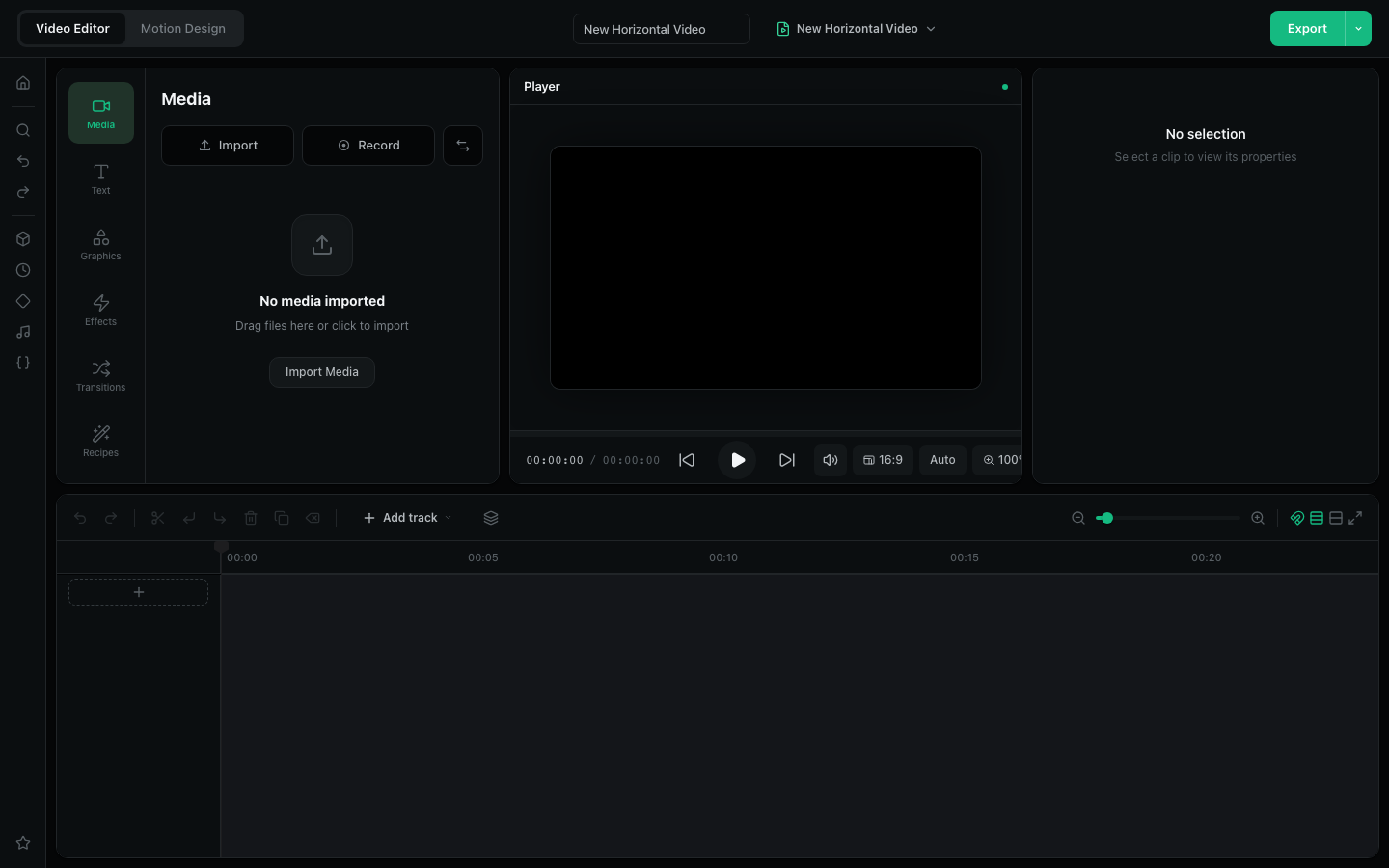
Starts a 16:9 project with transition choices visible.
Requires a current desktop browser. No account is required.
Transitions belong at the edit point
Place two clips next to each other on the same timeline track, then drag a transition onto the clip edge. Keep the effect brief so the edit remains readable.
How to add transitions between video clips
Arrange two clips
Import at least two videos and place them next to each other on a timeline track.
Choose a transition
Open Transitions and find a fade, wipe, slide, zoom, blur, or stylized preset.
Apply it at the edge
Drag the transition to the point where one clip ends and the next begins.
Preview and export
Play across the edit, adjust if needed, then export the finished sequence.
Ways to use this workflow
Fade between scenes
Create a soft change in time, place, or topic.
Slide between sections
Give tutorials and presentations a clear directional change.
Stylized cut
Use a brief visual effect when the content calls for more energy.
Browser limit: A transition needs adjacent clips and enough usable frames near the edit. Overusing long transitions can make pacing feel slow.
Frequently asked questions
Where do I add a transition?
Drag it from the Transitions panel onto the edge between adjacent clips in the timeline.
Can I preview a transition before export?
Yes. Move the playhead before the edit and play through the transition in the editor.
What types of transitions are available?
The editor includes basic fades plus wipe, slide, zoom, blur, and stylized transition groups.
Do I need to upload my clips?
No. Imported source media remains on your device while you edit.